• Shopping Cart Shopping Cart
    0Shopping Cart
London App Developer
  • Courses
  • Consulting
  • Tutorials
  • About
  • Click to open the search input field Click to open the search input field Search
  • Menu Menu
OnePlus and Windows logo on a teal background
Android, Android Studio, Windows 10

OnePlus One ADB Access over Network on Windows 10

So I recently upgraded to Windows 10 and also upgrade my OnePlus One to CyanogenMode 12 (Lollipop). Decided I would do a bit of Android development, so I’ve spent most of the weekend trying to locate some ADB drivers which work with my computer and phone. So far I found nothing.

After trying a number of different versions of the Samsung drivers, following countless guides and shaking my phone very hard, I noticed an option on the phones Developer options called ADB over network. My first thoughts were “this was too good to be true”, but lo and behold, after some investigation it’s far easier than locating and installing drivers which allow me to connect my OnePlus One to my Windows machine for ADB debugging (although, brain surgery is probably easier than that).

So here is how you do it.

Add ADB to your system path

The first step is to add the adb.exe file to your Windows system path. (Don’t worry, it sounds more complicated than it is).

Get the SDK location

First, launch Android Studio. (If you don’t already have it, download it from here).

Android Studio launcher on Windows 10

Now navigate to Tools > Android > SDK Manager to load the SDK Manager.

Android Studio SDK Manager

Take note of (copy) the Android SDK Location at the top of the Default Settings screen.

Android Studio SDK Settings

Add the SDK location/platform-tools to your system path

Now right click the start button and select System to load the System Settings.

Windows 10 System Settings

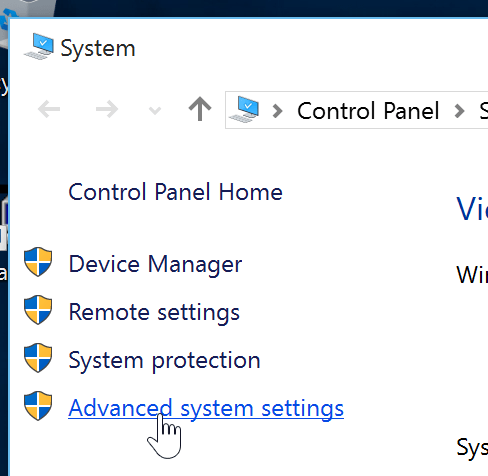
Select Advanced system settings.

Windows 10 System Settings

Click on Environment Variables near the bottom of the System Properties box.

Windows 10 Environment Variables

Locate Path from the System Variables section. Single click the row and select Edit…

Windows 10 Path System Variable

Be careful not to change any of the other text. Add a semicolon (;) to the end of the line, and paste the SDK path you copied earlier followed by “/platform-tools”. Then click OK on the Edit System Variable screen, Environment Variables screen, System Properties screen and close the System screen.

Windows 10 Edit System Variable screen

Enable ADB over network on your OnePlus One

The next step is to enable ADB over network. Before you continue, make sure your Android device and computer are connected to the same network.

First, open the phones Settings.

OnePlus One Settings

Scroll down the settings and select Developer options. (Note: if you don’t see this option, then select About Phone and then tab Build number repeatedly to activate developer mode).

OnePlus One Android Developer Options

Ensure that Developer options is set to On.

OnePlus One Android Developer Mode

Scroll down the Android debugging section and turn on Android debugging. Then tap ADB over network.

OnePlus One Android Debugging

Read the warning and tap OK  if you wish to continue.

OnePlus One Android ADB over network warning

ADB over network should now be enabled. Take note of the IP address and port that appears in settings (you will need this in the next step).

OnePlus One Android ADB over network IP address

Connect ADB to the device over the network

Now open Command Prompt (I use cmder in the screenshots below, but it’s the same as windows Command Prompt) and type the following command to check you added ADB to your system path correctly:

adb version

If you followed the Add ADB to your system path section correctly the output will look something like this

Windows 10 Android ADB Version

Now type the following command replacing <ip_address> with the IP and port number noted down previously:

adb connect <ip-address>

If done correctly, the output will look something like this:

Windows 10 Android ADB Connect

Run your project in Android Studio

Finally, open a project in Android Studio, and click Run.

Windows 10 Android Studio run app

You should see your OnePlus One as a device in the list.

Windows 10 Android Studio choose Device

Thank you for reading, I hope you found this useful!

Share this entry
  • Share on Facebook
  • Share on X
  • Share on WhatsApp
  • Share on Pinterest
  • Share on LinkedIn
  • Share on Tumblr
  • Share on Vk
  • Share on Reddit
  • Share by Mail
https://i0.wp.com/londonappdeveloper.com/wp-content/uploads/2015/08/OnePlus-One-ADB-Access-over-Network-on-Windows-10.png?fit=277%2C223&ssl=1 223 277 mark https://londonappdeveloper.com/wp-content/uploads/2018/12/lon_website_logo-300x110.png mark2015-08-09 17:48:202021-04-24 22:06:27OnePlus One ADB Access over Network on Windows 10
27 replies
  1. cem
    cem says:
    August 16, 2015 at 1:44 pm

    This is awesome man. Thank you so much 🙂

    Reply
  2. Alfredo
    Alfredo says:
    August 17, 2015 at 3:25 am

    Works perfectly!! Thanks bro

    Reply
  3. Martijn
    Martijn says:
    August 23, 2015 at 10:38 am

    This is great! Thanks <3

    Reply
  4. Ro
    Ro says:
    August 30, 2015 at 8:18 am

    I on the last step. I got this message: Unable to connect

    Reply
    • mark
      mark says:
      August 30, 2015 at 8:28 am

      Hi Ro. Try run ‘abd kill-server”, restart the phone and try again.

      Reply
      • Ro
        Ro says:
        August 30, 2015 at 4:55 pm

        Thanks. And thanks for posting this.

        Reply
        • Sakthi Ranjani
          Sakthi Ranjani says:
          November 28, 2015 at 2:43 pm

          i try with ‘abd kill-server’, and restarted… still not connecting :(… can u tell the driver software for windows 10 pls

          Reply
          • umer
            umer says:
            April 1, 2016 at 6:03 am

            Hello,
            Try turning off firewall or IPS, worked for me when I turned my firewall off it got connected

  5. Devver
    Devver says:
    September 18, 2015 at 6:48 pm

    Works perferct, much easier than finding drivers indeed, 1000x thanks !!

    Reply
  6. Rayyaan Mustafa
    Rayyaan Mustafa says:
    October 10, 2015 at 11:39 pm

    THANK YOU SO MUCH FOR THIS. I APPERCIATE THIS WORK SO MUCH.
    IVE spent countless hours figuring this out and this guide finally saved me
    Thank you SO MUCH!

    Reply
    • mark
      mark says:
      October 12, 2015 at 6:40 am

      No problem! Thank you for reading my post and taking time to comment 🙂

      Reply
  7. Kris
    Kris says:
    October 29, 2015 at 8:54 pm

    Hey when I get to edit the environment variables there is no path, just the TEMP & TMP. Can I create a new one with just the sdk path? Cheers

    Reply
  8. spencer
    spencer says:
    November 6, 2015 at 2:46 pm

    I accidentally deleted the whole path line can I get the default from somebody?

    Reply
  9. Sh
    Sh says:
    November 9, 2015 at 12:55 pm

    This is great and easy, but can somebody help me with this: unable to connect to 192.168.1.102:5555: cannot connect to 192.168.1.102:5555: A connection attempt failed because the connected party did not properly respond after a period of time, or established connection failed because connected host has failed to respond. (10060)

    I got this after “adb connect”.
    Thanks! 🙂

    Should phone be rooted?

    Reply
  10. Diogo Brito
    Diogo Brito says:
    March 1, 2016 at 7:45 pm

    You save my life, thank you a lot !!! I’ve been searching for something to actualy work for hours!!

    Reply
  11. Ishita
    Ishita says:
    April 5, 2016 at 12:29 pm

    unable to connect to 0.0.0.0:5555: cannot connect to 0.0.0.0:5555: the requested address is not valid in its context. (10049)
    came after ‘adb connect’ before this I have successfully connect 2 to 3 times.

    Reply
  12. zithron
    zithron says:
    April 5, 2016 at 4:13 pm

    i can’t find PATH in environment variables, just the TEMP & TMP. any solution for me? thanks 🙂

    Reply
  13. kevi
    kevi says:
    May 8, 2016 at 12:14 pm

    perfect, worked like a charm! i was pulling my hair out all night trying to get drivers to work on Win7 until i found this 😀

    Reply
  14. Mark weel
    Mark weel says:
    June 3, 2016 at 12:21 am

    Hi,

    After follow your steps, whenever I open Android Studio, I cannot open http://www.Google.com.
    is this true? Anybody got such problem?

    Reply
  15. Suraj
    Suraj says:
    June 9, 2016 at 8:35 am

    After I wrote- adb connect 0.0.0.0:5555
    it showed-“unable to connect to 0.0.0.0:5555: cannot connect to 0.0.0.0:5555: the requested address is not valid in its context. (10049)”

    Reply
  16. praveen
    praveen says:
    July 9, 2016 at 4:18 pm

    i did all the steps above but i cant find any active devices in the android device monitor

    Reply
  17. EthanSrya
    EthanSrya says:
    July 29, 2016 at 6:31 am

    In win 10 can somebody help me with this: unable to connect to 192.168.1.**:5555: cannot connect to 192.168.1.**:5555: A connection attempt failed because the connected party did not properly respond after a period of time, or established connection failed because connected host has failed to respond. (10060)

    I got this after “adb connect”.
    Thanks!

    Reply
  18. yogesh
    yogesh says:
    September 1, 2016 at 5:23 am

    thanks a lot ,i was really tired of searching for the proper solutions but at last found this……………

    Reply
  19. ori
    ori says:
    October 7, 2016 at 3:53 pm

    Do i need to do it each time ??

    Reply
  20. Aivaras
    Aivaras says:
    December 11, 2016 at 5:38 pm

    is there a way to do this on oneplus 3?

    Because there is no option for turning on debugging via network (only usb)

    Reply
    • mark
      mark says:
      December 27, 2016 at 1:07 pm

      That is a good question. I don’t have a OnePlus 3, so I’m not sure. However, I’d be surprised if they took this option out… Is debugger mode definitely enabled?

      Reply
  21. Omkar
    Omkar says:
    September 27, 2017 at 8:26 am

    This was great post, still useful. You sir are saviour :P.
    Thank you.

    For those concerned with IP ‘0.0.0.0:5555’, you need to connect the pc and mobile to same wifi network. Then you would get proper IP.
    cheers!!

    Reply

Leave a Reply

Want to join the discussion?
Feel free to contribute!

Leave a Reply Cancel reply

Your email address will not be published. Required fields are marked *

Pages

  • About
  • Consulting
  • Home
  • Tutorials

Categories

  • AI
  • Android
  • Android Studio
  • Angular
  • Aptana Studio
  • AWS
  • Bootstrap
  • Career advice
  • Celery
  • Databases
  • Deployment
  • DevOps
  • Django
  • Django REST Framework
  • Docker
  • Eclipse
  • Getting Help
  • Git
  • Git Bash
  • Git Flow
  • GitHub Actions
  • Google App Engine
  • IDE
  • Ionic Framework
  • iOS
  • JavaScript
  • Job Search
  • Links
  • Linux
  • Mac OS X
  • macOS
  • Node.JS
  • OpenAI
  • PGAdmin
  • Postgres
  • Productivity
  • Python
  • React
  • Salt Stack
  • Stack Overflow
  • Tools
  • Travis-CI
  • Tutorials
  • Ubuntu
  • Uncategorized
  • Vagrant
  • VSCode
  • WebSockets
  • Windows 10
  • WordPress

London App Developer Ltd,

71-75 Shelton Street, Covent Garden, London, United Kingdom, WC2H 9JQ

Company registration number: 09718346

© London App Developer - London App Developer Ltd, Company Registration Number: 09718346, VAT: GB224061842
  • Link to X
  • Link to Youtube
  • Link to Facebook
  • Link to Reddit
Link to: Virtualenv with Eclipse with PyDev on Windows 10 Link to: Virtualenv with Eclipse with PyDev on Windows 10 Virtualenv with Eclipse with PyDev on Windows 10Eclipse Windows and Python software logos on a pink background image Link to: Disable “LF will be replaced by CLRF” warning in Git on Windows Link to: Disable “LF will be replaced by CLRF” warning in Git on Windows Windows and Git logos on an orange zig zag backgroundDisable “LF will be replaced by CLRF” warning in Git on Windows
Scroll to top Scroll to top Scroll to top

This site uses cookies. By continuing to browse the site, you are agreeing to our use of cookies.

OKLearn more

Cookie and Privacy Settings


How we use cookies

We may request cookies to be set on your device. We use cookies to let us know when you visit our websites, how you interact with us, to enrich your user experience, and to customize your relationship with our website.

Click on the different category headings to find out more. You can also change some of your preferences. Note that blocking some types of cookies may impact your experience on our websites and the services we are able to offer.

Essential Website Cookies

These cookies are strictly necessary to provide you with services available through our website and to use some of its features.

Because these cookies are strictly necessary to deliver the website, refusing them will have impact how our site functions. You always can block or delete cookies by changing your browser settings and force blocking all cookies on this website. But this will always prompt you to accept/refuse cookies when revisiting our site.

We fully respect if you want to refuse cookies but to avoid asking you again and again kindly allow us to store a cookie for that. You are free to opt out any time or opt in for other cookies to get a better experience. If you refuse cookies we will remove all set cookies in our domain.

We provide you with a list of stored cookies on your computer in our domain so you can check what we stored. Due to security reasons we are not able to show or modify cookies from other domains. You can check these in your browser security settings.

Google Analytics Cookies

These cookies collect information that is used either in aggregate form to help us understand how our website is being used or how effective our marketing campaigns are, or to help us customize our website and application for you in order to enhance your experience.

If you do not want that we track your visit to our site you can disable tracking in your browser here:

Other external services

We also use different external services like Google Webfonts, Google Maps, and external Video providers. Since these providers may collect personal data like your IP address we allow you to block them here. Please be aware that this might heavily reduce the functionality and appearance of our site. Changes will take effect once you reload the page.

Google Webfont Settings:

Google Map Settings:

Google reCaptcha Settings:

Vimeo and Youtube video embeds:

Other cookies

The following cookies are also needed - You can choose if you want to allow them:

Privacy Policy

You can read about our cookies and privacy settings in detail on our Privacy Policy Page.

Privacy Policy
Accept settingsHide notification only